




This is a preview of updates coming to the Technical Bulletin's website in April 2026. Return to current site.
Read more about the modernization release schedule in this announcement.
Comment via the yellow feedback button in the lower right hand corner of the page. Contact the NLM Help Desk with any questions or concerns.
This is archived content.
Links may have become inactive over time. Visit Archive-It to find the original published layout.
My NCBI – ORCID Author Data Integration with SciENcv
Hutcherson L. My NCBI – ORCID Author Data Integration with SciENcv. NLM Tech Bull. 2014 Sep-Oct;(400):e9.
September 24, 2014 [posted]
October 16, 2014
[Editor's note added]
[Editor's note: These features were implemented on October 9, 2014.]
SciENcv users will soon be able to create SciENcv profiles using the data stored in their ORCID records. By linking an ORCID account to an NCBI account, users will be able to create SciENcv profiles using the personal statement, education, employment, publications and research awards information stored in ORCID records.
Linking an ORCID Account to an NCBI Account
Copying data from an ORCID record to a SciENcv profile is only possible if your ORCID account is linked to your NCBI account. To link your account, start at the NCBI login page (see Figure 1).
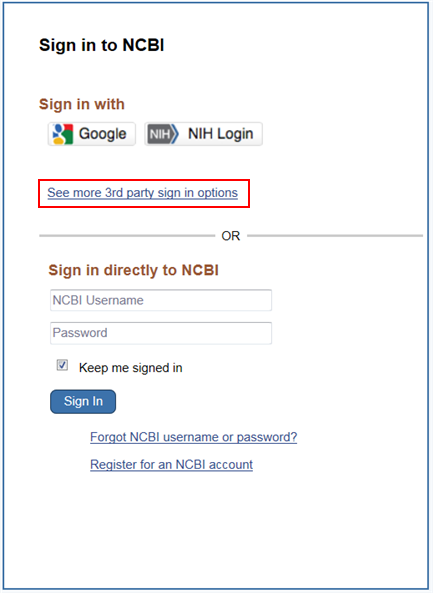
Figure 1: Click "See more 3rd party sign in options."
Click "See more 3rd party sign in options." Search for ORCID and click the ORCID link (see Figure 2).
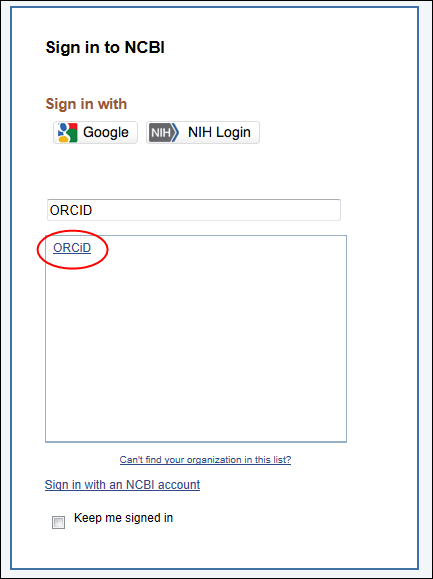
Figure 2: Click the ORCID link on the NCBI Sign in page.
The system will link you to the ORCID login page where you enter your username and password and authorize access to your ORCID record (see Figure 3).
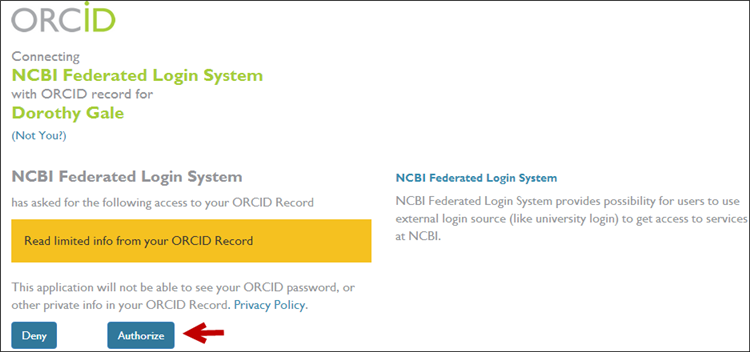
Figure 3: ORCID authorization page.
Next, on the "Sign in Via a Partner Organization" screen, link to your existing NCBI account or create a new NCBI account (see Figure 4).
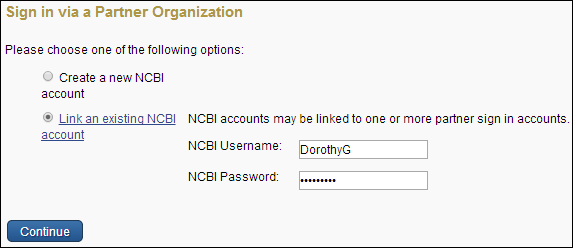
Figure 4: NCBI sign in via partner organization page.
Once the accounts are linked, you will be able to access your NCBI account while simultaneously signed in to your ORCID account and upload data from your ORCID record to one or more SciENcv profiles.
Creating a SciENCV Profile Using an ORCID Record
On the My NCBI main page, in the SciENcv portlet, click the "Manage SciENcv" link (see Figure 5).
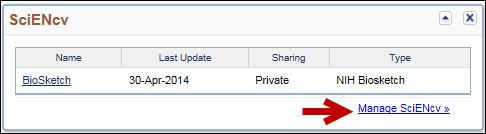
Figure 5: Click the Manage SciENcv link in the SciENcv portlet.
Next, click the "Create New Profile" link. Select the tab "From an external source" (see Figure 6). Assign a name to the new profile and select ORCID from the external source drop-down menu.
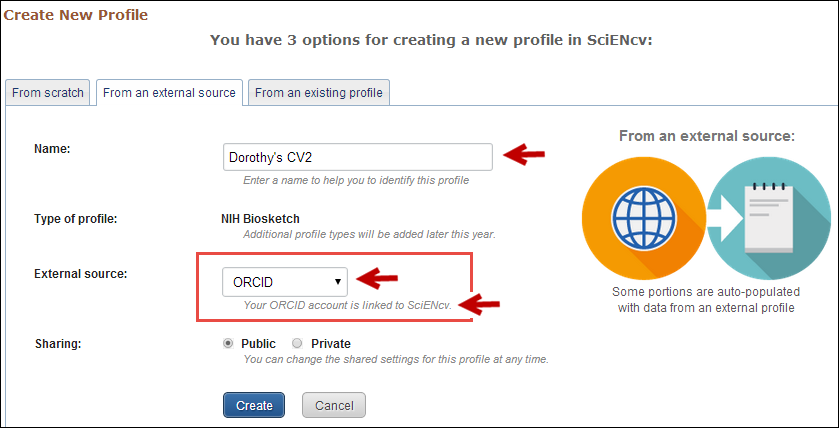
Figure 6: Select ORCID as your external source data option.
Note that in the Figure 6 example, Dorothy's ORCID account is linked to her NCBI account, and consequently the message displayed is "Your ORCID account is linked to SciENcv." If your NCBI account is not linked to your ORCID account, a message will display with a hyperlink asking you to link to your ORCID account. At this point, you may also specify whether to make the new profile public or private.
After clicking "Create," SciENcv will auto-populate the new profile with the information stored in your ORCID record. Note that publication and research award information will be uploaded directly to the ORCID tab for each profile section (see Figures 7 and 8).
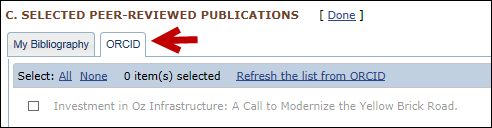
Figure 7: ORCID tab in Selected Peer-Reviewed Publications.
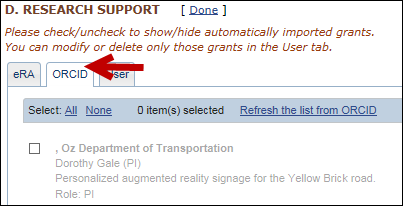
Figure 8: ORCID tab in Research Support.
To display publication and research award information in a SciENcv profile, select the check boxes next to each entry and click "Done" (see Figures 9 and 10).
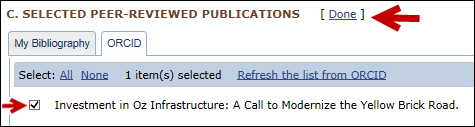
Figure 9: Selecting a publication to be displayed in a SciENcv profile.
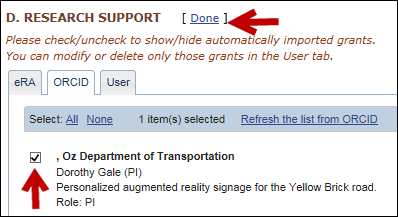
Figure 10: Selecting an award to be
displayed in a SciENcv profile.
Please send comments or inquiries regarding SciENcv to info@ncbi.nlm.nih.gov.