




This is a preview of updates coming to the Technical Bulletin's website in April 2026. Return to current site.
Read more about the modernization release schedule in this announcement.
Comment via the yellow feedback button in the lower right hand corner of the page. Contact the NLM Help Desk with any questions or concerns.
This is archived content.
Links may have become inactive over time. Visit Archive-It to find the original published layout.
PubMed and the My NCBI Favorites Collection Feature
Canese K. PubMed and the My NCBI Favorites Collection Feature. NLM Tech Bull. 2012 Mar-Apr;(385):e6.
April 09, 2012 [posted]
The PubMed Abstract display now includes a "Save items" portlet that will provide users with an easy way to add items of interest to a My NCBI collection. My NCBI users that are signed in may click the Favorite button, which will turn blue when selected, to add the citation to a new My NCBI collection, Favorites (see Figure 1).
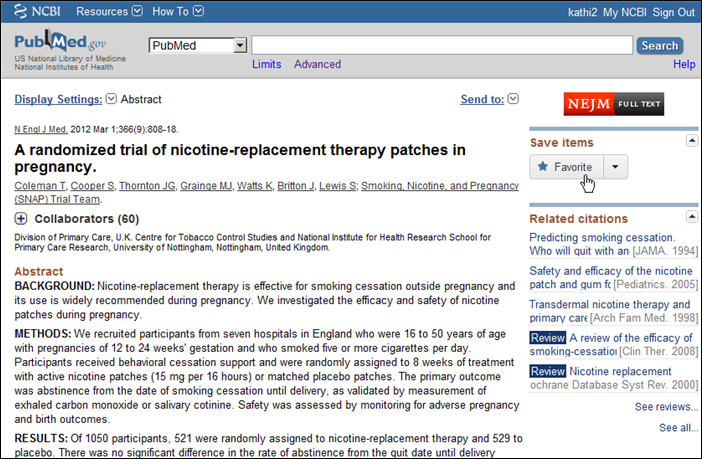
Figure 1: PubMed Abstract display with Save items portlet and Favorite button.
The "Save items" portlet also includes a drop-down menu which, when you are signed in to My NCBI, will display a list of all the collections for your account. Clicking the star next to a collection name will automatically add the citation to the collection. You may also choose to create a new collection from the drop-down menu (see Figure 2).
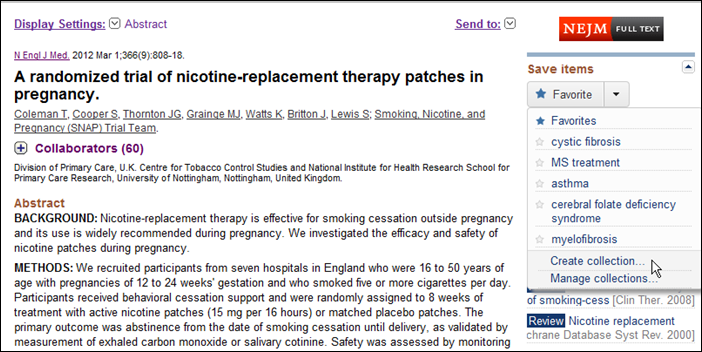
Figure 2: Save items portlet drop-down menu showing Favorites Collection.
To deselect a citation, click the Favorite button, or the star next to a collection name, again.
The new Favorites collection will be automatically added to your My NCBI collections (see Figure 3).
The My NCBI Collections portlet and Manage Collections page will be updated to include an edit link for each collection. Click edit to display the items in a collection and click the gear icon to change the name of a collection or to make the collection public (see Figure 3).
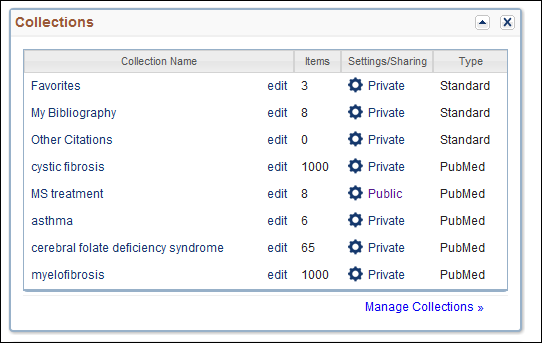
Figure 3: My NCBI homepage Collections portlet.