




This is a preview of updates coming to the Technical Bulletin's website in April 2026. Return to current site.
Read more about the modernization release schedule in this announcement.
Comment via the yellow feedback button in the lower right hand corner of the page. Contact the NLM Help Desk with any questions or concerns.
This is archived content.
Links may have become inactive over time. Visit Archive-It to find the original published layout.
Debut of a New Design for the NLM® Gateway
Demsey A. Debut of a New Design for the NLM Gateway. NLM Tech Bull. 2008 Jan-Feb; (360):e9.
February 19, 2008 [posted]
March 18, 2008
[Editor's note added]
[Editor's note: The redesigned NLM Gateway is the current production version as of March 10, 2008.]
NLM will soon unveil a redesigned Gateway with a new user interface (see Figure 1). The new interface, accessible through the link on the current homepage, will run in parallel with the current version. It will permanently replace the current version after several weeks.

New Look and Improved Usability
The new homepage (see Figure 2) contains the search query box and links to search tips, Help, and additional information about the system.
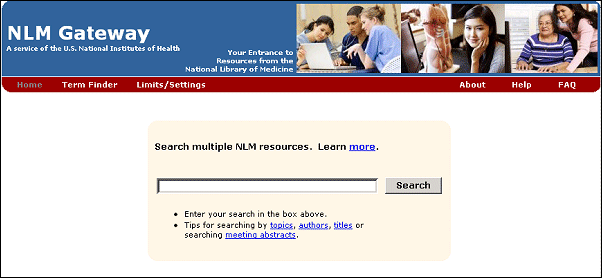
Enter a search in the search query box. When the search is completed, the Results Summary page displays (see Figure 3).
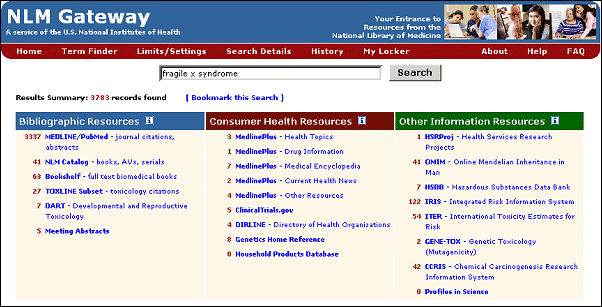
The Results Summary lists individually the twenty-three collections that Gateway searches with the number of items retrieved in each. They are displayed by category in three columns: Bibliographic Resources, Consumer Health Resources, and Other Information Resources. Click on an  for information about the collections in a category.
To view the results for a collection, click on its name or on the number of items retrieved. On the collection Results Page (see Figure 4), items are displayed in the Brief format. Click on an item's title to display an Expanded or fuller view. At the top and bottom of the Results Page are links for each of the Gateway functions:
- Download
- Put in locker
- Order documents (for PubMed only)
- Clear check marks
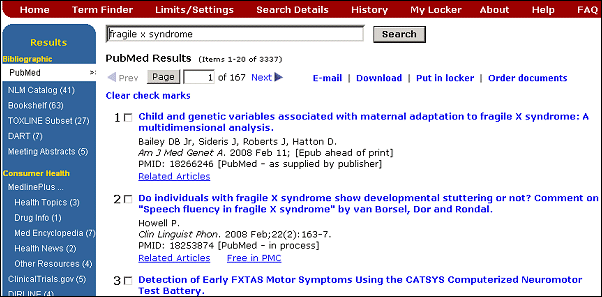
The search query box is available on every Gateway page. The user can enter a new search in the search box at the top of the page beneath the Features Bar. There is also a link back to the homepage on the Features Bar (see Figures 3 and 4). A new search can also be entered there.
The Sidebar on the left of each collection Results Page was also redesigned (see Figure 5).
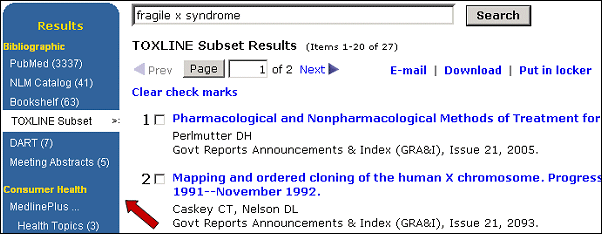
The Sidebar links enable the user to go directly to the results of any other collection. Through this sidebar, the user can also return to the Results Summary page, by clicking on Results, and can Bookmark the search.
Gateway Features
Located at the top of each page, beneath the Gateway banner, is the Features Bar (see Figures 3 and 4). It includes links to the homepage, Term Finder, Limits/Settings, Search Details, History, and My Locker.
- Use Term Finder to search for and select search terms from Medical Subject Headings® (MeSH) and the Unified Medical Language System® (UMLS® ) Metathesaurus.
- Use Limits/Settings to customize settings for searching and for displaying results (see Figures 6, 7, 8, 9, and 10).
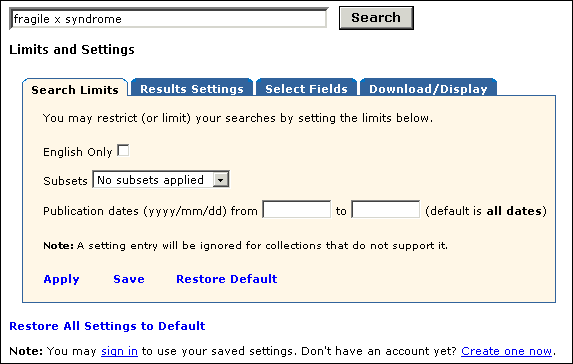
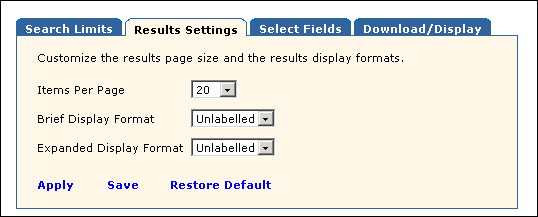
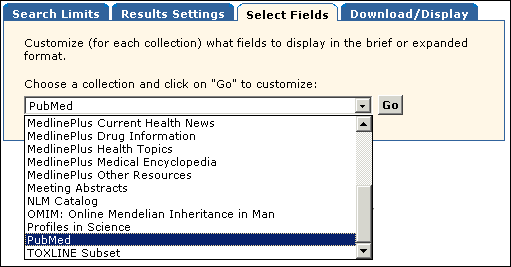
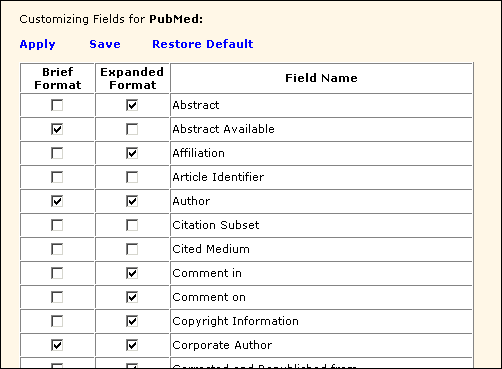
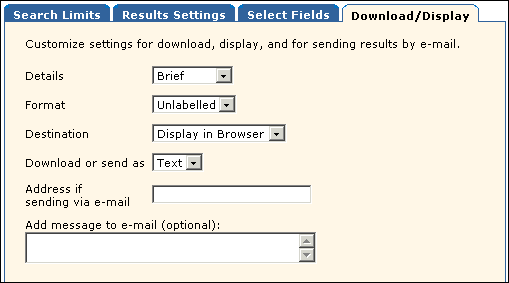
- Select Apply to save the setting for the current session or Save to permanently set the choices. To save the settings a User ID and Password are required. Current Gateway User IDs and Passwords will work in the redesigned system. When a user is logged in, a Sign Out button displays on the Features Bar to be used when ending the current session.
- Search Details displays the search strategy as it was translated, using the Gateway automatic term mapping and search rules and syntax.
- History displays the most recent twenty-five searches. Use History, to repeat, combine or build on past searches.
- My Locker stores the user's selected search results. A user can access the items in their locker without losing the results of their current search.
Contact information
Please send your comments or questions to gateway@nlm.nih.gov. We always welcome user feedback.